
Open and save on your own computer
New in DartRelay 2.5. When a published program shows its Windows Open or Save As dialog, the browser takes over: people pick a file on their own computer, and what the program saves arrives in their browser's downloads. There is no drive to find, no folder to upload into first, and the program needs no changes. This page explains how it works, how to switch it on, and what people see.
Other browser-based remote app platforms make people upload a file to a server folder first, then find it again from inside the program. With Open and save in the browser, the program's own Open and Save As go straight to the person's own computer, the way a locally installed program would.
How it works
Every program that opens or saves a file through the standard Windows dialog can use it: Office, accounting and practice-management software, line-of-business programs, Notepad. Nothing is changed in the program.
- Open, import or attach. When the program shows its Open dialog, a DartRelay box appears in the browser instead: “notepad.exe is asking for a file”. The person drops a file on it or clicks Choose file…, which opens their computer's own, native file browser. The file travels into the session and the program opens it as if it had been picked from its own dialog.
- Several files at once. When the program's Open dialog lets people pick more than one file (an Attach files or Import command, for example), the box says “Choose one or more files” and the file browser allows a multiple selection. All the files travel into the session and the program receives them together, exactly as if they had been selected in its own dialog.
- Save, Save As or export. When the program shows its Save As dialog, the browser asks “Save to my computer?”. With Save to my computer, the program writes the file as usual and it arrives in the browser's downloads, usually the Downloads folder.
- Export into a folder. When the program asks for a folder instead of a file (an Export attachments or Export all command, including the classic Browse For Folder tree that older programs such as Visual FoxPro applications show), the browser asks “Save what … writes to your computer?”. Every file the program writes there comes to the browser: as one ZIP file, as separate downloads, or with a choice each time, as you decide on the app group.
- Save changes back. When somebody opens a file from their computer, edits it and presses Save, the browser offers to send the updated file to their downloads. Not now leaves it on the server and asks again at the next save.
- The server's files are one click away. Use the server's files and Save on the server bring back the program's own Windows dialog, for files kept on the host or a network share. You can switch these off for app groups so that files only ever come from, and go to, the person's own computer.
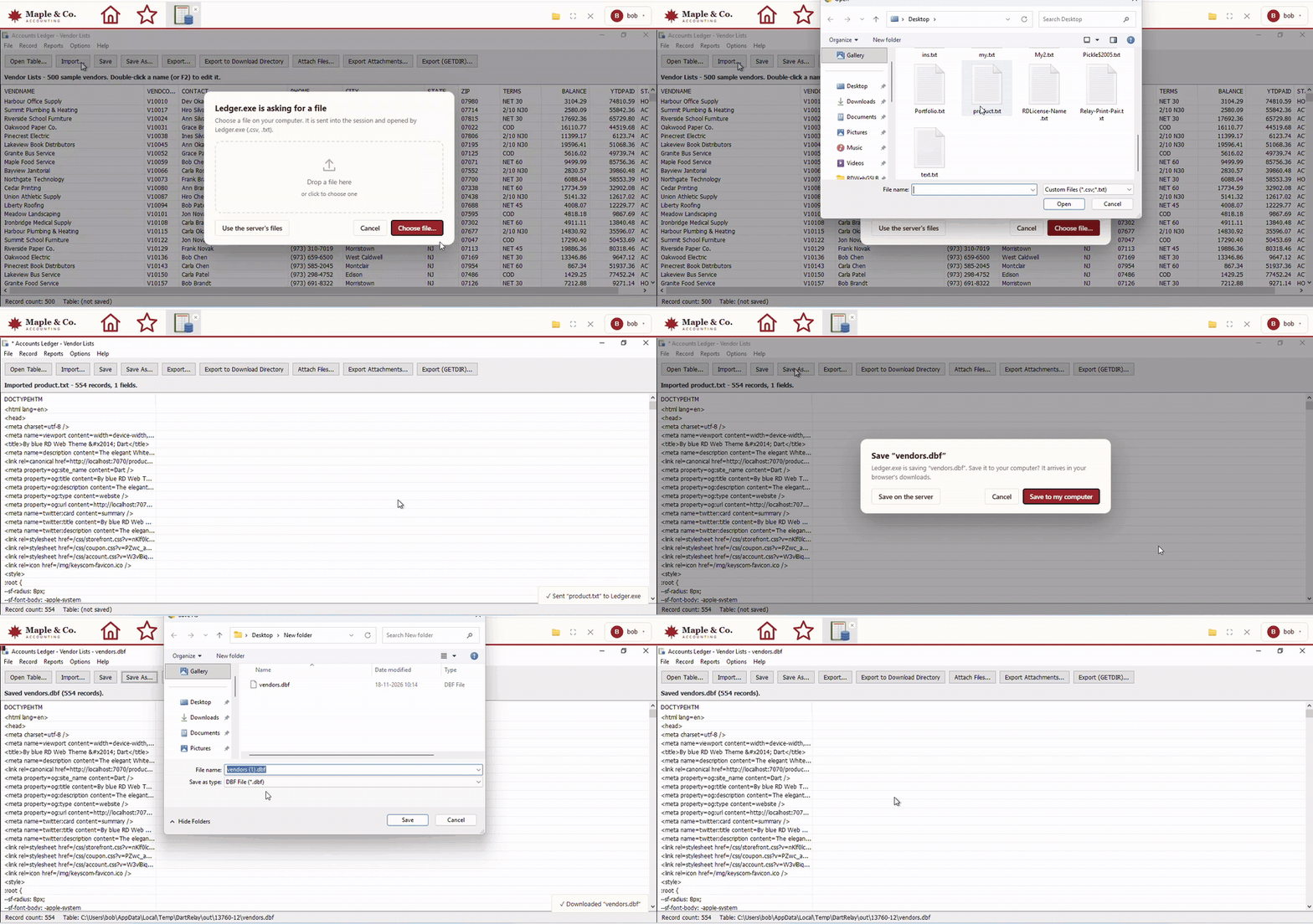
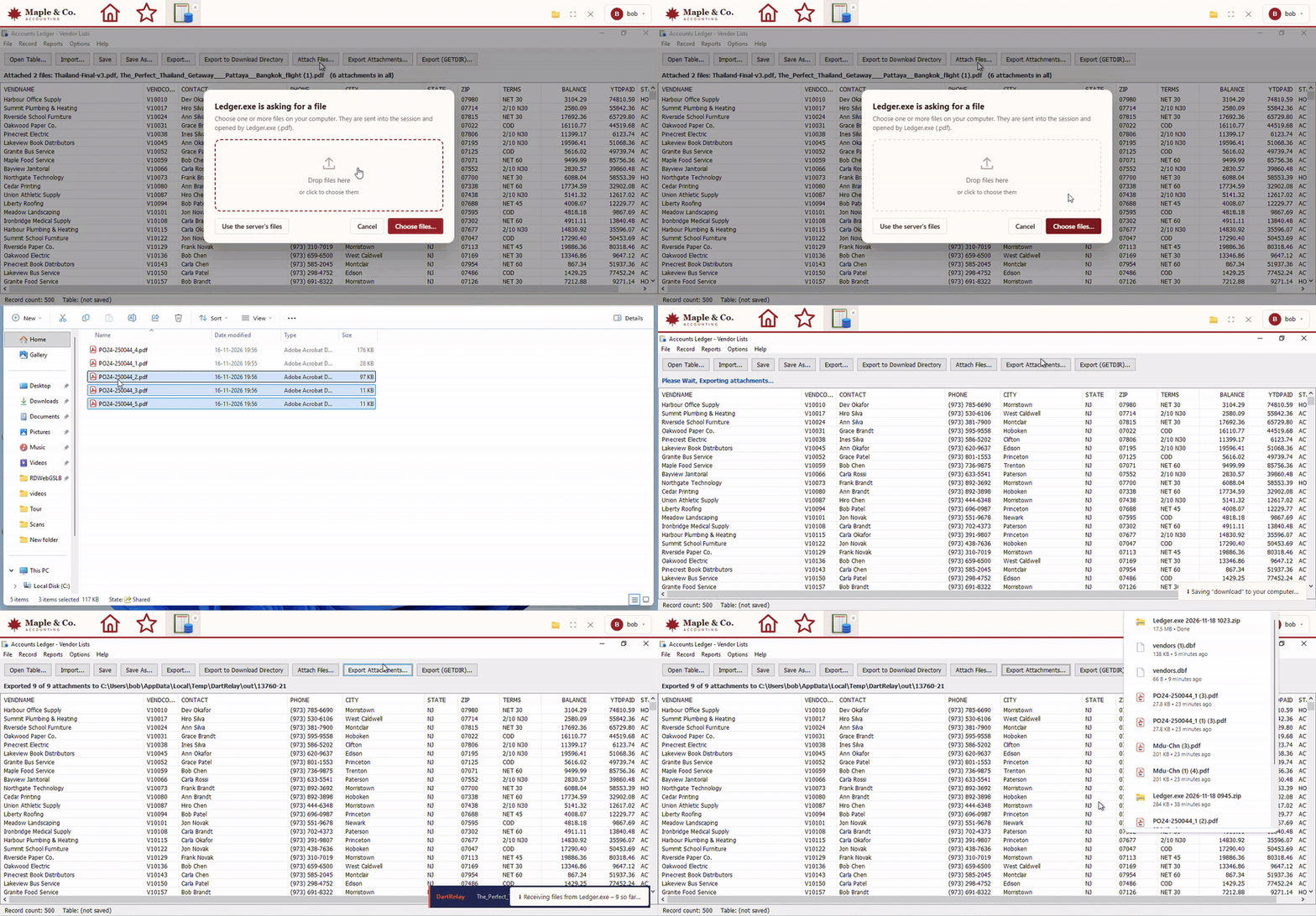
The file travels inside the remote session itself, on a private channel that DartRelay opens only for resources with the setting on. No drive is mapped, no port is opened, and no code is injected into any program.
Up to 200 MB per file. Several files work wherever the program's own dialog allows several files, or asks for a folder. For files a program writes by itself without any dialog, or programs with their own non-Windows file pickers, use the virtual drive and file browser. Both can be on for the same resource.
Before you begin
- DartRelay 2.5 or later. See Upgrading DartRelay.
- The host must be added to DartRelay with a working management account, as described in Adding and preparing hosts. DartRelay uses it to install the Files Agent (below).
- An administrator role that may edit desktops or app groups, and hosts. See Administrator roles and permissions.
- Any current browser. People need nothing installed on their own computer.
Switch it on for a desktop or app group
- Open the resource. Go to Catalog → Remote Apps or Catalog → Desktops and open the app group or desktop for editing.
- Find the Files card. It holds both ways files can move between people's computers and the session.
- Tick Open and save in the browser (marked recommended).
- App groups only: choose how several files download. When a program sends several files at once decides what happens when a program exports into a folder: Ask each time (ZIP or separate files), Always download one ZIP file or Always download separate files. The ZIP is made in the user's browser, so nothing extra is written on the host. A single file always downloads as itself.
- App groups only: decide about the server's files. Also let users open and save files on the server keeps the Use the server's files and Save on the server buttons. Untick it and the program's own dialog is cancelled rather than shown, so files only ever come from and go to the person's computer.
- Optionally keep the virtual drive. Virtual drive and file browser is a separate tick on the same card. With only browser file dialogs on, people see no extra drive and no folder button.
- Click Save. DartRelay installs the Files Agent on the resource's hosts if it is not there yet.
Files card reference
| Setting | What it does | Default |
|---|---|---|
| Open and save in the browser | The program's Windows Open and Save As dialogs are handled by the browser, as described above. | Off |
| When a program sends several files at once (app groups) | Ask each time: the browser offers Download as ZIP or Download separately. Always one ZIP: one download, no prompt per file. Always separate files: each file downloads on its own. | Ask each time |
| Also let users open and save files on the server (app groups) | Keeps the buttons that bring back the program's own dialog. Off: the dialog is cancelled instead of shown. | On |
| Virtual drive and file browser | A drive in the session and the folder button in the portal. See File transfer. | Off |
The DartRelay Files Agent
Browser file dialogs need one small helper on each host that runs the resource: the DartRelay Files Agent. You do not install it by hand. DartRelay installs it, with the host's management account, when a desktop or app group on that host is saved with the setting on, and checks it again every time the host is saved. Every other DartRelay feature stays agentless, and hosts that never use browser file dialogs never get it.
- What it does. It starts once in each Windows session. In a session where the resource has the setting on, it notices the standard Open and Save As dialogs and hands them to the browser. In any other session it does nothing.
- Where it lives.
C:\Program Files\DartRelay Host\FileAgent\, started by the scheduled task\DartRelay\Files Agentat every sign-in (this is what starts it in RemoteApp sessions) and by a Run entry for full desktops. It is listed in Programs and Features as DartRelay Files Agent. - Upgrades. Each DartRelay release carries the matching agent. Running agents switch to the new version by themselves within a minute, as soon as no dialog or transfer is in progress, so nobody has to sign out.
Check or install it from the host page
- Open the host under Catalog → Hosts.
- Scroll to the DartRelay Files Agent card. It shows the version on the host, the version this DartRelay carries, and the result of the last attempt.
- Click Install now to install or update it straight away.
Install it manually
For a host DartRelay cannot reach with its management account, copy DartRelayFilesAgentSetup.exe from the web\HostAgent\ folder of your DartRelay installation to the host and run it as an administrator. The same file installs, upgrades and repairs.
DartRelayFilesAgentSetup.exe                 install or upgrade, with a result window
DartRelayFilesAgentSetup.exe /quiet          the same, no windows (exit code 0 = done)
DartRelayFilesAgentSetup.exe /remove         remove it
What people see
Nothing new to learn: people use their program exactly as before, and the browser asks at the moment the program needs a file.
| In the program | In the browser |
|---|---|
| File → Open, Import, Attach | A box “… is asking for a file” with a drop area, Choose file…, Use the server's files and Cancel. Progress is shown while the file is sent, then “Sent … to …”. |
| Attach files, Import (several files) | A box “… is asking for a file” saying “Choose one or more files”, with Choose files…. Pick or drop several files; the program receives them all at once. |
| File → Save As, Export | “Save … ?” with Save to my computer, Save on the server and Cancel. The file then arrives in the browser's downloads. |
| Export into a folder (folder picker or Browse For Folder) | “… is asking for a folder” with Save to my computer, Use the server's folders and Cancel. Then, depending on the app group's setting, “… sent N files” with Download as ZIP and Download separately, or the downloads start straight away. |
| Save on a file opened from the computer | “Save … to your computer?”, offering to send the updated file to the downloads, or Not now. |
The end-user steps are in Files and printing in a session, which you can send to your staff. All of the wording is in the language packs, so it follows the portal's language.
Security and privacy
- Only where you allow it. The channel the files travel on is opened only for desktops and app groups with the setting on. In every other session the agent cannot reach the browser and stays idle.
- The person decides every transfer. Nothing is read from their computer unless they choose a file, and nothing is saved to it unless they press Save to my computer.
- No drive and no port. Files travel inside the encrypted session, the same way the screen does. No drive mapping, SMB share or extra firewall rule is involved.
- Nothing injected. The agent watches for the standard dialogs from outside the program and fills them in with ordinary window messages.
- Temporary copies are cleaned up. Files passing through are kept in the person's own temporary folder on the host and removed after a day.
If something goes wrong
| What you see | Likely cause and fix |
|---|---|
| The Windows dialog appears as usual, no browser box | The setting is off for that resource, or the Files Agent is not on that host. Check the Files card, then the DartRelay Files Agent card on the host and click Install now. Sessions that were already open pick the agent up at their next sign-in. |
| The Windows dialog comes back after a few seconds | The browser did not answer within 6 seconds, for example because the tab was in the background or the connection dropped. The program's own dialog returns so the person is never stuck; they can pick the file there or cancel and try again. |
| “… is too large” | The file is over the 200 MB limit. Use the virtual drive and file browser for larger files. |
| “… did not reach …” | The program never confirmed the file. Close the dialog in the program and try again. |
| Install now reports a problem | The management account cannot reach the host, or lacks administrator rights. Use Connect on the host page to check it, or install the agent manually as above. |
| Anything else | The agent writes a log per user on the host: %LOCALAPPDATA%\DartRelay\FileAgent\agent.log. Send it to support with the time it happened. |
Related pages
File transfer
The virtual drive and file browser, for several files or folders at once.
Files and printing in a session
The end-user guide, including opening and saving on your own computer.
Adding and preparing hosts
The management account DartRelay uses, and the Files Agent card.
Publishing applications
Create the app groups that carry the Files card.