
Tenancy & Branding
Tenancy & Branding lets one DartRelay installation look and behave like several. Each address people browse to can have its own theme, its own share of seats, its own rules for who may sign in, and its own automatic launch. This page explains what an address can decide and how to set each part up.
What Tenancy & Branding does
An address is the hostname people type into their browser, such as acme.portal.example.com. You can point several addresses at the same DartRelay installation in DNS. On its own, every address shows the same default portal.
A binding ties an address to settings of its own. Once acme.portal.example.com is bound, visitors there can see Acme's logo and colours, be limited to Acme's people, take seats from Acme's allocation and have Acme's application open automatically, while globex.portal.example.com does something entirely different. A tenant is the customer or department a binding belongs to; one tenant can be reached on more than one address.
Typical uses:
- A service provider hosting applications for several client companies.
- One organisation giving staff, contractors and a public kiosk different front doors.
- A single public address that opens one application with no sign-in, beside a staff address that needs a password.
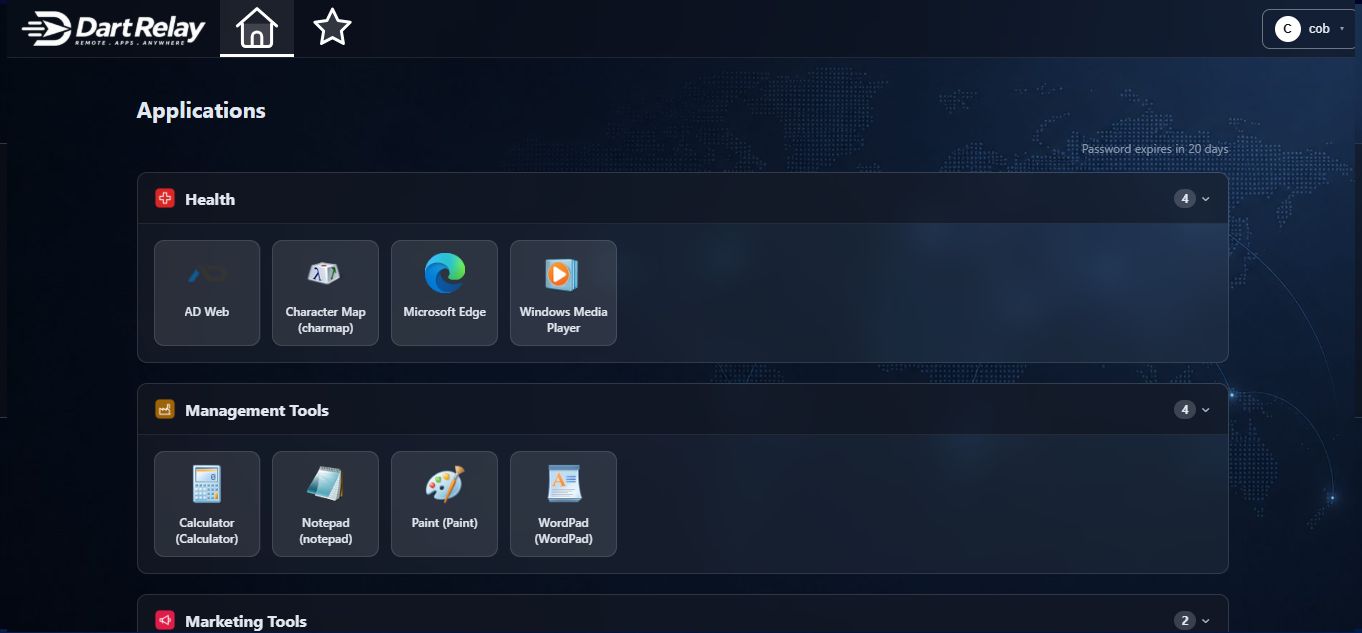
What a binding can decide
| Setting | Where it is set | What it does |
|---|---|---|
| Theme | The binding | The logo, colours, sign-in page, home page and footer shown on this address. See Themes. |
| Tenant and seat allocation | The binding | Which tenant the address belongs to, how many Relay Seats that tenant may use at once, and who is emailed when the allocation is full. |
| Who this address admits | The binding's Access page | Anybody who can sign in, only chosen groups, or anybody without signing in (guest access). |
| Network access | The binding's Access page | Which network addresses may reach the portal on this address, and which are blocked. |
| Sign-in domain | The binding's Access page | The default Active Directory domain on this address, whether the domain list is shown, and whether other domains may sign in here. |
| Sign-in buttons | The binding's Access page | Which Relay Pass sign-in buttons (such as Microsoft) appear on this address, and whether people are sent straight to one. |
| Automatic launch | The binding | An ordered list of rules that open a resource when people arrive. Every binding starts on "No rule". |
| Sign-out address | The binding | Where people are sent after signing out on this address, for example back to a load balancer's own sign-in page. |
| Announcements and Agreements | Announcements and Agreements | Each notice and each agreement says which addresses it applies to. |
What every tenant shares
It is important to be clear about what a binding does not do. All tenants on one installation share:
- one database, one set of published resources and one set of hosts (unless you publish separate resources from separate hosts and grant them separately);
- one licence: tenant allocations are slices of it, never extra seats;
- one administrator console: an administrator who can edit themes can edit every tenant's theme;
- one audit log and one list of sessions.
Limiting who may sign in on an address is a gate on that door, not a leash on the person. If Acme's address admits only Acme's groups, Acme's staff can still sign in on any other address that admits everybody, including an address with no binding such as the server's own name. They see only their own resources there, under that address's branding. If staff must only ever use their own address, do not publish the other addresses to them. Describe this feature as controlling who may sign in at each address, not as isolating customers from each other.
Which resources a person sees is decided by their access to each resource, not by the address. See Giving people access to resources.
The Tenancy & Branding page
Go to Appearance → Tenancy & Branding. At the top, the page tells you which address you reached it on and which theme that address currently shows, which is the first thing to check when branding looks wrong.
When tenants have seat allocations, a line above the table adds them up: how many seats are allocated across how many active tenants, how many the licence covers, and how many active tenants have no allocation of their own. It turns amber if the allocations add up to more than the licence. That is allowed (see Seat allocation); the colour is a reminder, not an error.
The table has these columns:
| Column | What it shows |
|---|---|
| Tenant | The tenant the address belongs to, if any. |
| Hostname | The address, exact or wildcard. |
| Theme | The theme shown there. |
| State | A switch reading Active or Disabled. Click it to change. A disabled binding is ignored: the address falls back to the default theme and to the settings for addresses with no binding. |
| Sign-in | Who may sign in there. Up to four groups are named, then "and N more". An address open to visitors without a password is tagged "Anyone, no sign-in". On a disabled binding the list is dimmed and marked "Not in force". |
| Actions | Edit or remove the binding. |
Bind an address
- Point the address at DartRelay. Create the DNS record for the new hostname so it reaches your DartRelay server (or your load balancer). If the portal uses HTTPS, make sure your certificate covers the new name; see Endpoints and certificates.
- Open the page. Go to Appearance → Tenancy & Branding.
- Add a binding. Enter the hostname, for example
acme.portal.example.com, withouthttps://, a port or a path. To cover every subdomain of a domain, enter a wildcard such as*.acme.com. - Choose the theme. Pick the theme this address should show.
- Save. The binding appears in the list as Active.
- Check it. Open the address in a private browser window. You should see the chosen theme.
How addresses are matched
- Only the hostname counts. A visitor keeps the same branding over HTTP or HTTPS and on any port.
- An exact hostname wins over a wildcard. A longer wildcard (
*.eu.acme.com) wins over a shorter one (*.acme.com). *.acme.comdoes not matchevilacme.com.- A trailing dot (
portal.acme.com.) is treated the same as without it. - Hostnames are entered in plain ASCII. Enter an international domain name in its
xn--form. - An address with no binding, or with a disabled one, uses the default theme.
Changes to a binding can take up to sixty seconds to take effect, and in a pool of several servers each server picks them up on its own schedule. Wait a minute before concluding a change has not worked.
Tenants and seat allocation
Giving an address a tenant lets you cap how much of the installation that customer can use, and tell them when they reach the cap. Because the allocation belongs to the tenant, a customer reached on two addresses has one allocation, not two.
| Field | What it does | Default |
|---|---|---|
| Tenant name | The customer or department this address belongs to. Shown in the list and in the tenant's notification email. | No tenant |
| Max Relay seats | How many Relay Seats this tenant may use at the same time. Blank means no cap of its own; the licence still applies. | Blank |
| Notification email addresses | Who at the tenant is emailed when the allocation is full. Separate several addresses with commas; up to twenty. Each address is checked when you save. | Blank |
| BCC to administrators | Also sends a blind copy of the tenant's notification to your administrators. | Off |
| Note | Free text for your own reference. | Blank |
How the cap works
- Every launch that needs a new seat is checked twice: first against the tenant's cap, then against the licence. Both must have room.
- A seat is counted against the tenant of the address the session was started from, and stays counted there until the session ends, even if you later change the binding.
- A device with live sessions on two tenants' addresses takes one licence seat but counts once in each tenant's allocation, because it is using both customers' share.
- An address with no tenant, or reached by the server's IP address, is limited by the licence alone.
- Allocating more than you own in total is allowed (for example ten tenants of ten seats on a fifty-seat licence), because tenants rarely peak together. Each tenant is still stopped at its own number, and the installation is still stopped at the licence.
When a tenant is full, the person launching sees a message naming their tenant's allocation; it does not mention the licence or any other tenant. The tenant's notification addresses receive the tenant seat limit email, which you can reword on Email delivery and templates. More on seats is on Licensing and Relay Seats.
Who this address admits
On the binding's Access page, Who this address admits has three choices:
| Choice | What it means |
|---|---|
| Anybody who can sign in | The default. Any account that can sign in to DartRelay may sign in here. |
| Only chosen groups | Only members of the groups you list may sign in here. You can name portal user groups, Active Directory groups, Active Directory organisational units (everyone underneath counts) and local Windows groups. Anybody else is refused on this address with a message saying the address is reserved, even with a correct password. |
| Anybody, without signing in | Visitors are let in without a password, as the installation's guest account. See Guest access without a sign-in. |
A binding set to chosen groups whose groups have all been deleted admits nobody, and the list shows it. The administrator console is never affected by these settings, so you can always sign in at /admin and correct a mistake. A person already signed in is not re-checked until they sign in again.
Network access on this address New in 2.0
You can limit which network addresses may reach the portal on a particular hostname. This works alongside the installation-wide lists on Authentication → Network Access, described on Sign-in protection.
- Allowed addresses on this address. By default a visitor must pass both the installation-wide list (if it is switched on) and this address's list.
- Override global. When ticked, only this address's list applies on this hostname. The list must not be empty. Because the hostname comes from the visitor's browser, this lets the listed networks reach the portal through this hostname; the page says so.
- Blocked addresses. Network addresses or ranges refused on this hostname only. Blocked entries are managed on the Blocked addresses tab of the Network Access page.
These lists never apply to the administrator console. If the installation-wide portal list is switched off, an address's own list protects only that hostname; the server's other names stay open, and both pages warn you.
Sign-in domain on this address New in 2.0
When DartRelay signs people in against more than one Active Directory domain, each address can have its own domain settings. The card appears only when a Directories list exists (see Active Directory and multiple domains).
| Setting | What it does | Default |
|---|---|---|
| Default domain | Where a bare username such as alice signs in on this address. | Use the installation default |
| Domain list on the sign-in page | As set on the Directories page, Show, or Hide. | As set on the Directories page |
| Only the default domain signs in on this address | Refuses accounts from other domains on this address without contacting those domains. Portal accounts and local Windows accounts are unaffected. | Off |
For "one address, one domain": choose a default domain, choose Hide, and tick the last box. An address can narrow sign-in this way but never widen it.
Sign-in buttons on this address New in 2.1
If you use Relay Pass sign-ins such as Microsoft Entra ID or OpenID Connect, each address can choose which buttons it shows:
- Which passes: every pass whose button is switched on (the default), or only the ones you tick. With none ticked, the address shows just the password form.
- Send people straight to a sign-in: as each pass says, never, or a specific pass this address offers.
This is a real gate, not just layout: a pass this address does not offer is refused here even from a bookmark. A pass switched off installation-wide never appears, whatever you tick. Adding ?signin=1 to the sign-in address still shows the form. See Microsoft Entra ID sign-in and OpenID Connect sign-in.
Automatic launch on this address
The binding's Automatic launch on this address card holds a numbered list of automatic launch rules. When somebody arrives, the first rule in the list that applies to them opens a resource.
- Create the rule first. Rules are made on Catalog → Auto Launch; see Automatic launch and single-application portals.
- Open the binding. In the Tenancy & Branding list, open the address.
- Add the rule. In the Automatic launch on this address card, choose the rule from the add-a-rule list.
- Order the list. Use the up and down arrows. The first rule that applies to a person wins. Use Remove to take a rule off this address.
Every binding starts on No rule, which means nothing opens by itself on that address. Addresses with no binding run only the rules that are chosen on no binding at all, so a rule you add to one tenant never leaks onto other addresses.
Sign-out address
Normally, signing out returns people to the portal's own sign-in page. If the address sits behind a load balancer or gateway that has its own sign-in page, set the binding's Sign-out address to the page the gateway expects. DartRelay finishes its own sign-out first, then sends the browser there. Addresses without a binding use the installation-wide setting. See Load balancer and ADC integration.
Example: two client companies on one installation
A managed service provider hosts accounting software for two clients, Acme (40 staff) and Globex (15 staff), on a 50-seat licence.
- DNS and certificate. Create
acme.apps.example.comandglobex.apps.example.com, both pointing at the DartRelay server, and cover both names in the certificate. - Themes. Make an Acme theme and a Globex theme on Themes.
- Bindings. Bind each address to its theme.
- Tenants. On the Acme binding set the tenant name to Acme, Max Relay seats to 35 and the notification address to Acme's IT contact. On Globex, 15 seats and Globex's contact. The list now shows 50 of 50 allocated.
- Who may sign in. On each binding's Access page, choose only that company's directory group.
- Agreements and notices. Post each client's terms of use as an Agreement scoped to its address, and a maintenance notice as an Announcement scoped to both.
- Test. Sign in on each address as a member and as a non-member of that company. The non-member is refused on the other company's address.
Remember the gate-not-leash rule: if the provider's own address admits everybody, both companies' staff could sign in there too. Restrict it to the provider's staff group.
If something goes wrong
The wrong theme appears on an address
Check the line at the top of the Tenancy & Branding page that says which theme your current address resolves to. Make sure the binding is Active, the hostname is spelled exactly as people type it, and no more specific binding (an exact name or a longer wildcard) is winning. Wait a minute after a change.
Somebody is refused with a "reserved address" message
The binding admits only chosen groups and the person is not in one of them, or a group was deleted. Open the binding's Access page and check the list. Remember the change can take up to a minute, and a person already signed in keeps their session until they sign in again.
Launches are refused although the licence has free seats
The tenant's Max Relay seats is full. The refusal names the tenant. Raise the allocation, or ask the tenant's users to close sessions they no longer need. The licence total is shown separately on Licensing and Relay Seats.
An application no longer opens automatically after an upgrade
Automatic launch rules are now chosen on each binding, and every binding starts on No rule. Add the rule on the binding's Automatic launch on this address card. The Auto Launch page shows a note after the upgrade listing which rules were moved and which were switched off.
The notification email never arrives
Check the notification addresses on the binding, that the tenant seat limit template is switched on, and that email delivery works; see Email delivery and templates.
Related pages
Themes
Build the look each address shows.
Automatic launch
Rules that open a resource on arrival.
Guest access
Let an address in without a sign-in.
Licensing and Relay Seats
How seats are counted.