
Themes
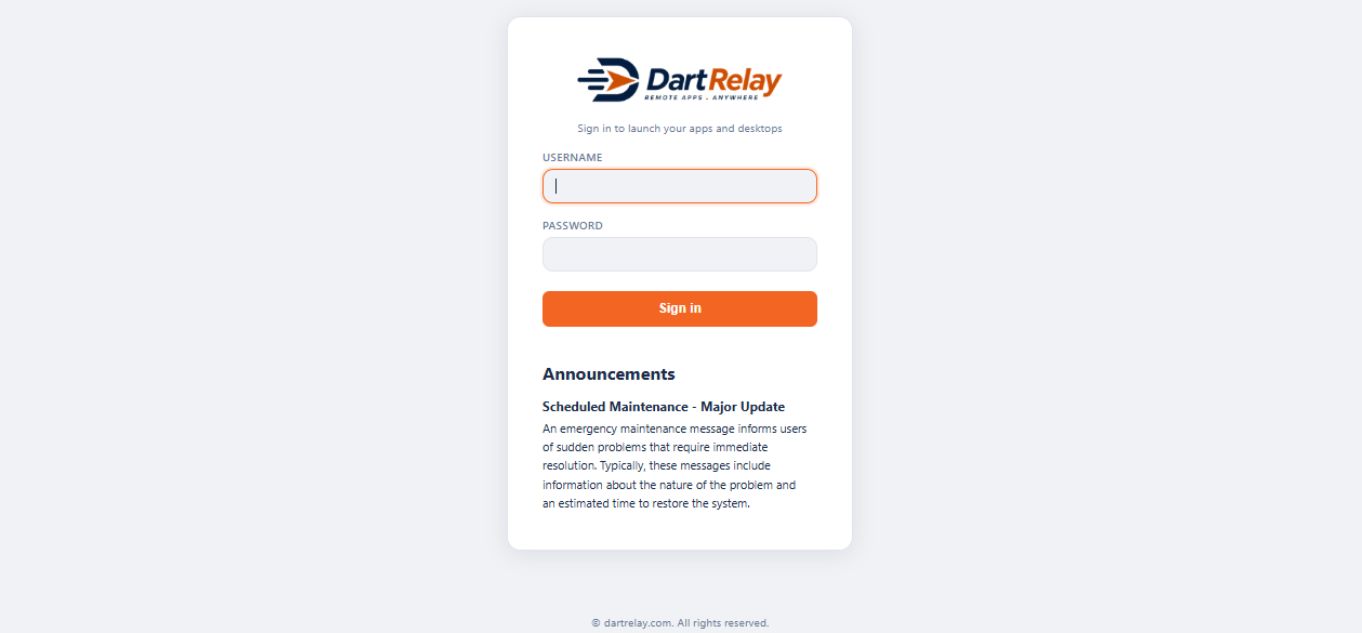
A theme decides how the portal looks: the sign-in page, the home page people see after signing in, and the footer under both. This page explains how themes work, how to make your own, and how to move one between installations.
What a theme is
Everything a person sees in the portal before they open an application is drawn from a theme. A theme holds three kinds of thing:
- Appearance – the logo, a small "mini" logo, the browser-tab icon, the page background, the colours, the font, the corner rounding, the page width and any custom CSS.
- Two page layouts – the sign-in page and the home page (called After Login in the editor), each built from blocks such as a heading, the sign-in form, the list of applications or a picture. The layouts are covered on Building the sign-in and home pages.
- A footer – its own small set of blocks with a background and width of its own, printed at the bottom of every portal page.
The administrator console is never themed. However a theme is set up, /admin always looks the same, so you can always get back in to fix a theme.
One default theme, and a theme per address
One theme is marked Default. Anybody who reaches the portal on an address that has not been given a theme of its own sees the default. To show a different theme on a particular address (for example portal.acme.com), bind that address to the theme on Tenancy & Branding. That is how one installation can look like several different products.
The Portal Themes page
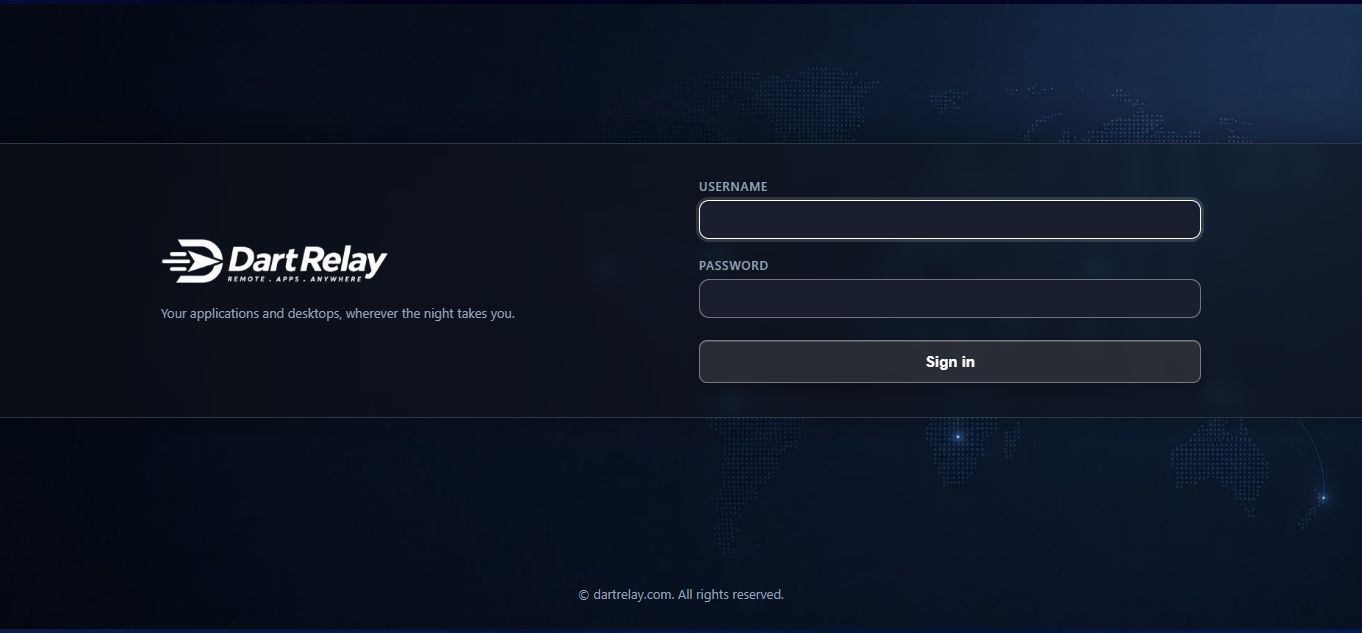
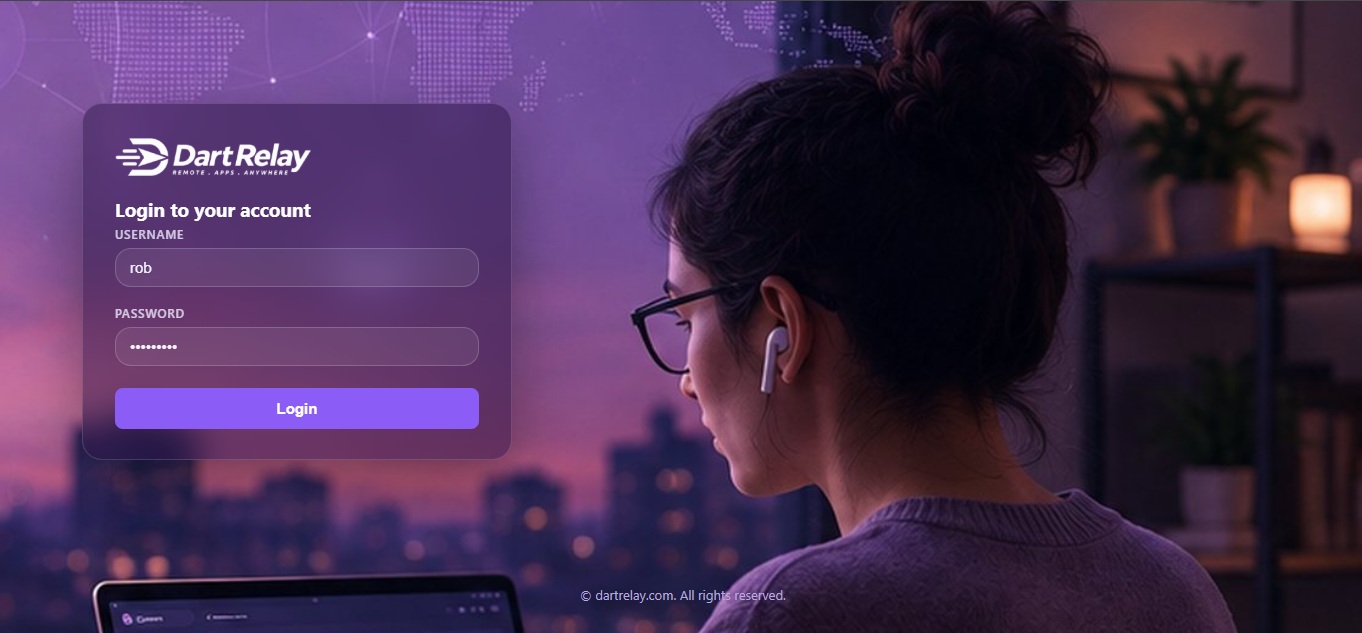
Go to Appearance → Portal Themes. Each theme appears as a tile with a small drawn picture of its sign-in page and home page, made from the theme's real colours, logo and layout. The picture shows shape and colour only; text is drawn as bars.
Each tile shows:
- the theme name and description;
- a Default flag on the theme everybody sees on unbound addresses;
- a Base flag on the ready-made themes that come with DartRelay;
- how many addresses are bound to it;
- buttons to Edit, Duplicate, Make default, Export and Delete.
Above the tiles is a search box (it looks in the name and description) and an Import button. The list shows 20 themes a page by default; you can change that to 40 or 80. The search, page and page size all live in the page address, so you can bookmark or send a filtered list.
The ready-made (base) themes
DartRelay ships with a set of ready-made themes, light and dark, plain and photographic. They are complete examples: each has a finished sign-in page, a finished home page and its own colours. The set grows from release to release.
Base themes are read-only. You can open one to look at it, but you cannot save changes to it, and you cannot delete it. To make one your own, duplicate it and edit the copy.
DartRelay refreshes its base themes every time it starts, so improvements made to a ready-made theme in a new release reach your installation automatically. A theme you duplicated earlier is your own copy and is never changed by an upgrade. If a later release improves the theme you copied, duplicate the new version and reapply your changes, or copy the relevant settings across by hand.
Create your own theme
The quickest way to a branded portal is to start from the ready-made theme closest to what you want.
- Open the themes list. Go to Appearance → Portal Themes.
- Duplicate a base theme. On the tile of the theme you like best, click Duplicate. A copy appears in the list with both of its pages already built, so you change only what you need to.
- Open the copy. Click Edit on the new tile. The editor opens on the Base tab.
- Give it a name. Type a name your colleagues will recognise, such as "Acme portal". Names must be unique.
- Add your logo. Under Logo, choose your logo file. Add a Mini logo too if you have a small square mark; it is used where the full logo does not fit, such as a narrow side panel. If you leave the mini logo empty, the full logo is used instead.
- Set the colours and background. Work through the colour fields and the background settings described below. The preview beside the fields shows the result.
- Save. Click Save. The tile picture is redrawn from your changes.
- Put it in front of people. Either click Make default on its tile so everybody sees it, or bind it to one address on Tenancy & Branding.
You can also create a blank theme, but a duplicate saves you rebuilding the standard pages before changing one thing about them.
Settings on the Base tab
The theme editor has three tabs: Base (appearance and footer), Login Page and After Login. The Base tab holds the settings below.
| Field | What it does | Default |
|---|---|---|
| Page width | How wide the content of the home page may grow: Full width, a percentage of the window (20–100%), or a fixed width in pixels (320–4000). The header bar always runs edge to edge whatever you choose. | Fixed, 1140 px |
| Name | The theme's name in the console. Must be unique. | — |
| Page title | The text in the browser tab. | — |
| Logo | Your logo, shown on the sign-in page and in the header. Pictures are stored inside DartRelay, so there is nothing to copy between servers. Keep the file small (roughly 180 KB or less); a larger file is refused with a message. | The DartRelay logo |
| Mini logo | A small, square mark for places the full logo does not fit. Falls back to your full logo, never to somebody else's. | Your full logo |
| Favicon | The small icon in the browser tab. | — |
| Background colour / Background image | The page background. The picture can be set to fill and crop (cover), fit (contain), tile (repeat) or sit in the centre. The background shows fully on the sign-in page; on the home page it shows wherever the theme's panels are see-through. | — |
| Colours | Twelve colours, each with a picker and a box for a hex value: page, panels, text, muted text, borders, accent, buttons, links and so on. | From the theme you duplicated |
| Font | The font list used on portal pages, for example "Segoe UI", Arial, sans-serif. | — |
| Corner radius | How rounded buttons, panels and cards are. | — |
| Custom CSS | Your own CSS rules, applied to every portal page including the sign-in page. Use it to style blocks you have given a CSS class (see Advanced block settings). @import is removed for safety. | Empty, or the copied theme's rules |
The live preview on the Base tab shows your saved colours, logo and width. Save to see a change there.
If you use a white logo on a dark theme and later lighten the panel colour, the logo can disappear against the new background. Change the logo at the same time as the panel colour.
The footer
The footer is a card at the bottom of the Base tab. It is its own small page builder: add blocks such as Columns, Text, Social icons, a Button or a Contact list, exactly as on the page tabs. A footer with no blocks is not drawn at all.
| Field | What it does | Default |
|---|---|---|
| Background colour | Fills the footer band. Blank means no fill. | Blank |
| Background image | A picture behind the footer, with the same fit choices as the page background. | — |
| Width | Same as the page lines the footer content up with the page above it; or choose full width, a percentage or a fixed width. The coloured band always spans the window; only the content is inset. | Same as the page |
The footer appears on both the sign-in page and the home page, so its palette leaves out blocks that only make sense on one of them (no sign-in form, no list of applications). Footer text uses the theme's text colour; if you give the footer a dark band on a light theme, set the text colour with Custom CSS.
Previewing before you save
On the Login Page and After Login tabs, click Preview page. The page opens in a pop-up window using the blocks you have now, saved or not. While that window stays open, it refreshes itself shortly after each change. The home-page preview shows a handful of sample applications so you can judge the layout even if your own account has no applications.
Making a theme the default, and deleting one
- Make default on a tile switches the default theme straight away. Addresses bound to other themes are not affected.
- A theme cannot be deleted while an address is bound to it; the message tells you so. Bind the address to another theme first, or remove the binding.
- Base themes cannot be deleted.
Exporting and importing a theme
A theme can be saved as a single .zip package and loaded into another DartRelay installation. This is useful for building a customer's look on a test installation and moving it to production, or for keeping a copy of a theme.
What a package contains
- a
theme.jsonfile with every setting and the three block layouts (sign-in, home, footer), written so it can be read and edited; - an
assetsfolder holding the logo, mini logo, favicon, background pictures and any pictures used in Image blocks, as ordinary image files.
A package does not contain address bindings (an address means nothing on another server), announcements or agreements. Those stay where they are.
Export
- Find the theme. In Appearance → Portal Themes, locate its tile, or open it in the editor.
- Click Export. Your browser downloads the package. Exporting from the editor exports the saved theme, not unsaved changes, so save first.
Import
- Open the themes list. Go to Appearance → Portal Themes and click Import.
- Choose the package. Select the
.zipfile and upload it. - Read the summary. Nothing is saved yet. DartRelay shows the theme name, how many blocks each page has, every picture with its type and size, and any warnings (for example a colour that will not display, which is left unset).
- Choose what to do. If no theme has that name, confirm to create it. If one does, choose between creating a new theme alongside it or replacing the existing one.
- Confirm. The theme appears in the list with a freshly drawn picture.
Replacing keeps the existing theme's address bindings, its place in the list and whether it is the default. A base theme cannot be replaced. The uploaded file is held for about 15 minutes while you decide; after that, upload it again.
An imported theme goes through the same checks as a theme saved in the editor. A package cannot carry anything the editor would refuse.
Example: one look for staff, another for a client
A company runs DartRelay for its own staff at apps.example.com and also gives a client access at client.example.com.
- Staff theme. Duplicate a light ready-made theme, add the company logo and colours, save, and click Make default. Every address without a binding, including
apps.example.com, now shows it. - Client theme. Duplicate a dark ready-made theme, add the client's logo, change the heading on the sign-in page to the client's name, and save.
- Bind the client address. On Tenancy & Branding, bind
client.example.comto the client theme. Visitors on that address now see the client's brand; staff see theirs.
If something goes wrong
The portal still shows the old look on one address
Open Tenancy & Branding. The page tells you which address you reached it on and which theme that address resolves to. Check that the binding's state is Active; a disabled binding falls back to the default theme. In a pool of several servers, a change can take up to a minute to reach the other servers.
Custom CSS has hidden the sign-in form
Open /portal/login?plain=1 on the affected address. This shows the built-in sign-in page with no theme at all, so you can sign in. The console at /admin is never themed; fix or remove the CSS rule there.
Save is refused with a message about a block
A block setting is out of range or not valid (for example a button link without https://, or a spacing value outside 0–400). The message names the problem; correct the field and save again. Check closed folds such as Advanced, where the field may be out of sight.
A picture is refused
The file is too large or is not an image. Use a smaller PNG or JPEG, or put the picture on a web server and enter its https:// address instead.
A duplicated theme did not get a fix from a new release
That is expected: copies are yours and are not changed by upgrades. See the note under The ready-made (base) themes.
Related pages
Building the sign-in and home pages
Blocks, columns, the Hero panel and the apps panel.
Tenancy & Branding
Show a different theme on each address.
Languages
Translate the portal and the words in your blocks.
Announcements
Post notices on the sign-in and home pages.